querychat

An example of a ‘safe’ and verifiable AI app

Three tools: visualize, query, filter
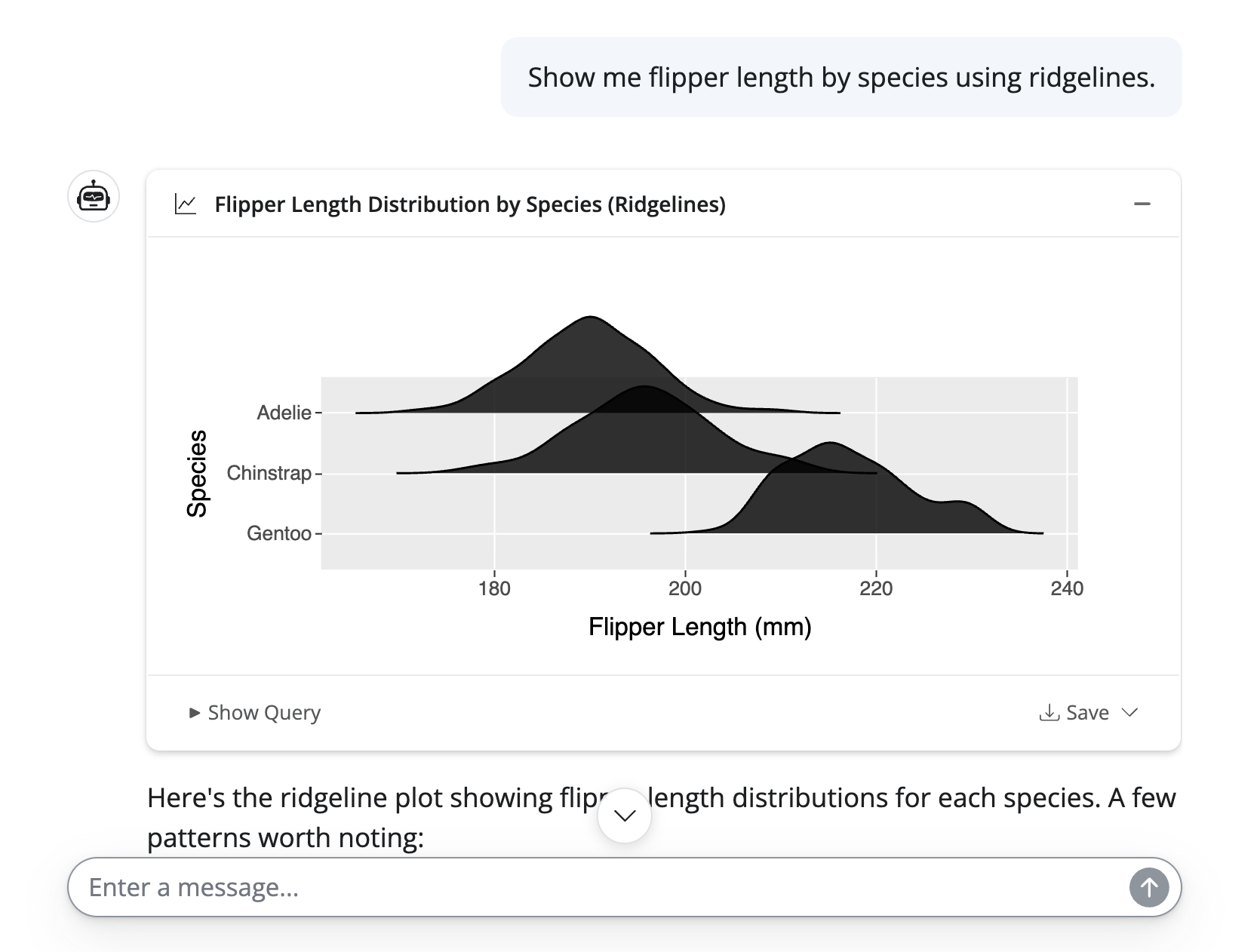
  1. Visualize: execute ggsql queries, rendered as visualizations in the chat.

Three tools: visualize, query, filter
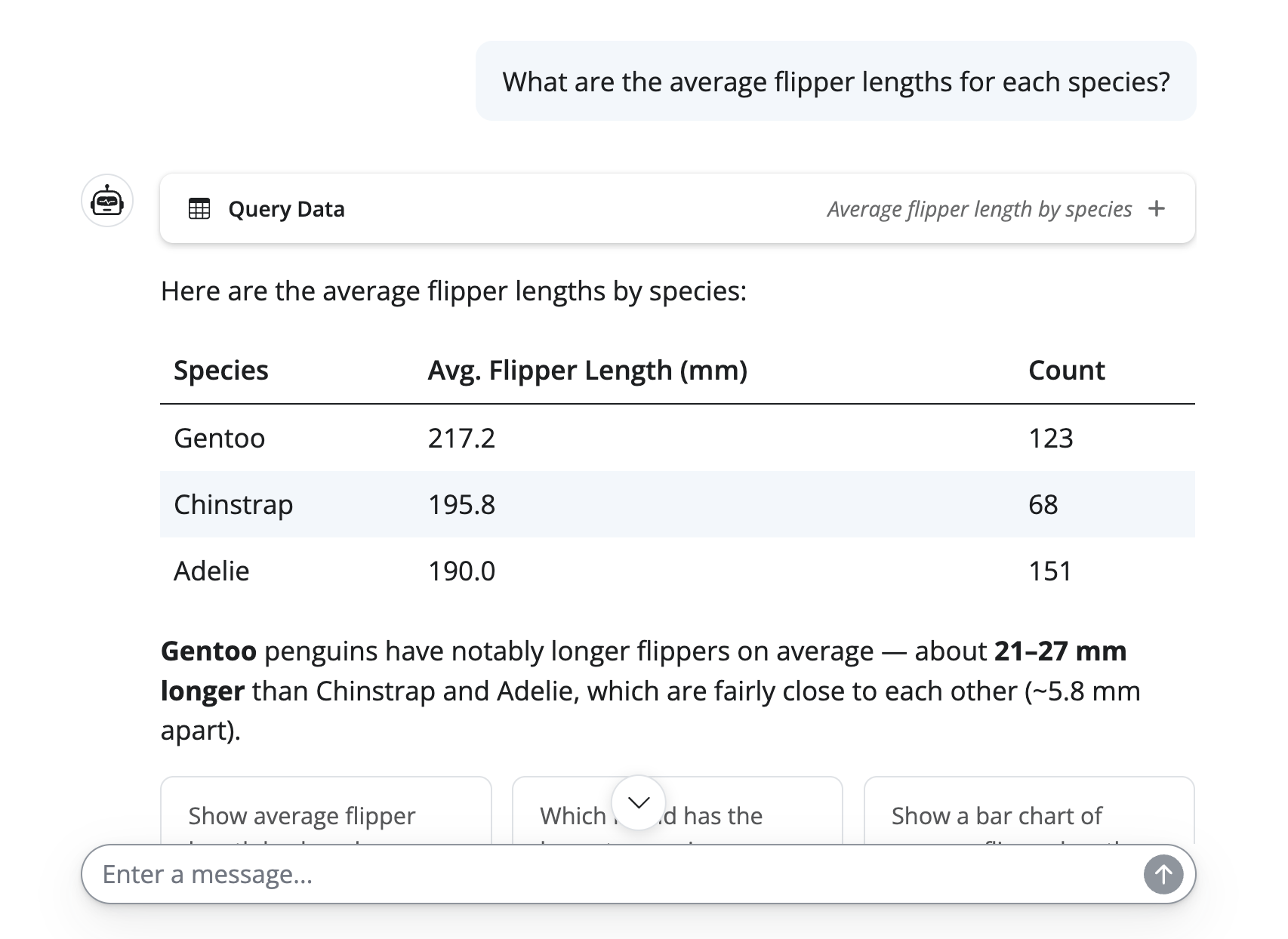
  1. Visualize: execute ggsql queries, rendered as visualizations in the chat.
  2. Query: execute SQL queries, rendered as tables/text in the chat.

Three tools: visualize, query, filter
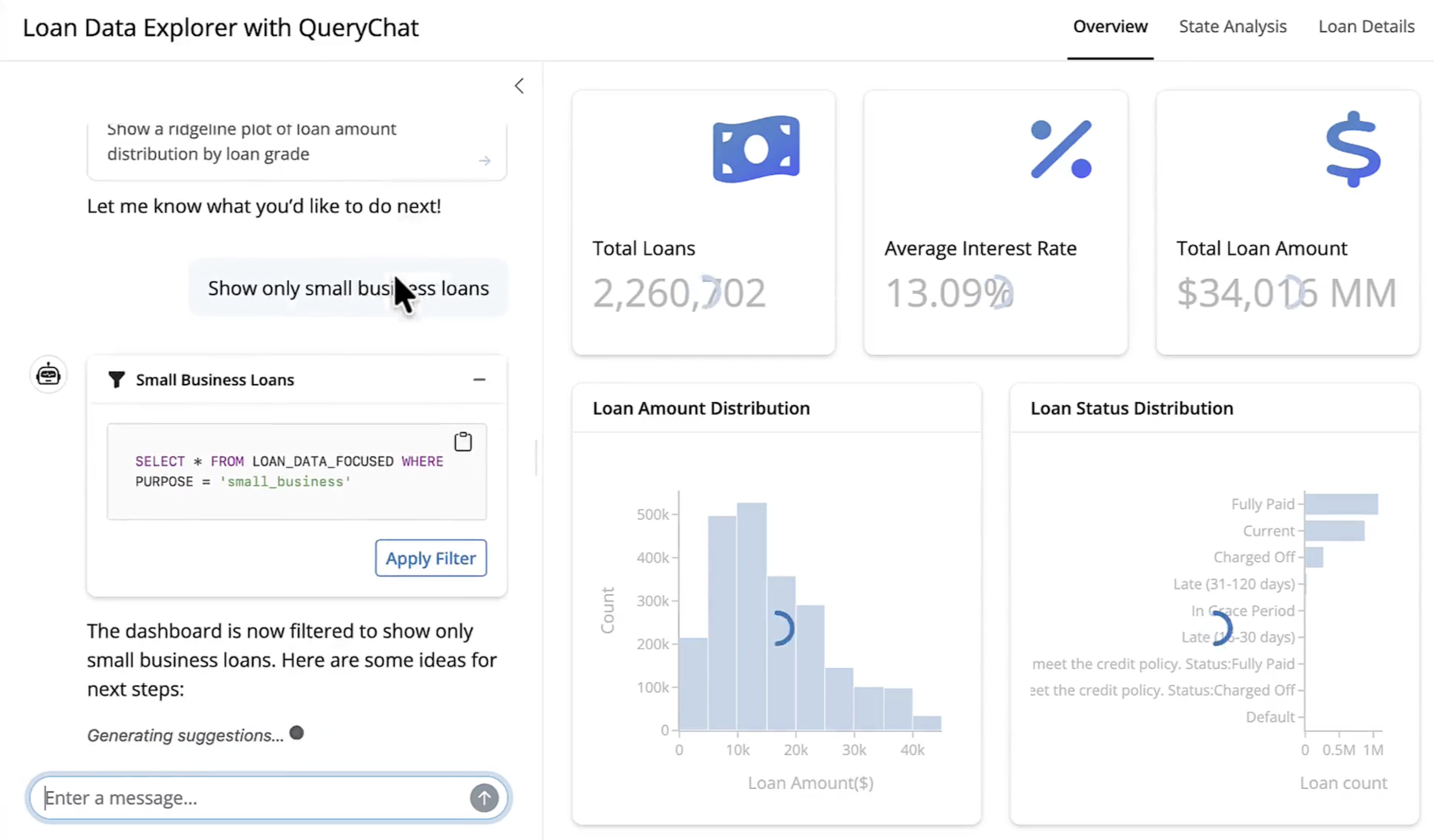
  1. Visualize: execute ggsql queries, rendered as visualizations in the chat.
  2. Query: execute SQL queries, rendered as tables/text in the chat.
  3. Filter: execute filter SQL queries on predetermined views, allowing the LLM to reactively drill into the data in response to user questions.

Note: all three require only read-only access to the data.

Get started

app.py
from querychat import QueryChat
from querychat.data import titanic

qc = QueryChat(
  titanic(), 
  "titanic",
  client="bedrock-anthropic",
  tools=("filter", "query", "visualize"),
)
  1. Supply a data source, LLM client, and tools to enable.
  1. QueryChat auto-generates a system prompt with schema context and instructions for the LLM.
  1. Users can also provide a data dictionary to further guide the LLM.

The pre-bundled app

app.py
from querychat import QueryChat
from querychat.data import titanic

qc = QueryChat(...)

app = qc.app()


shiny run app.py
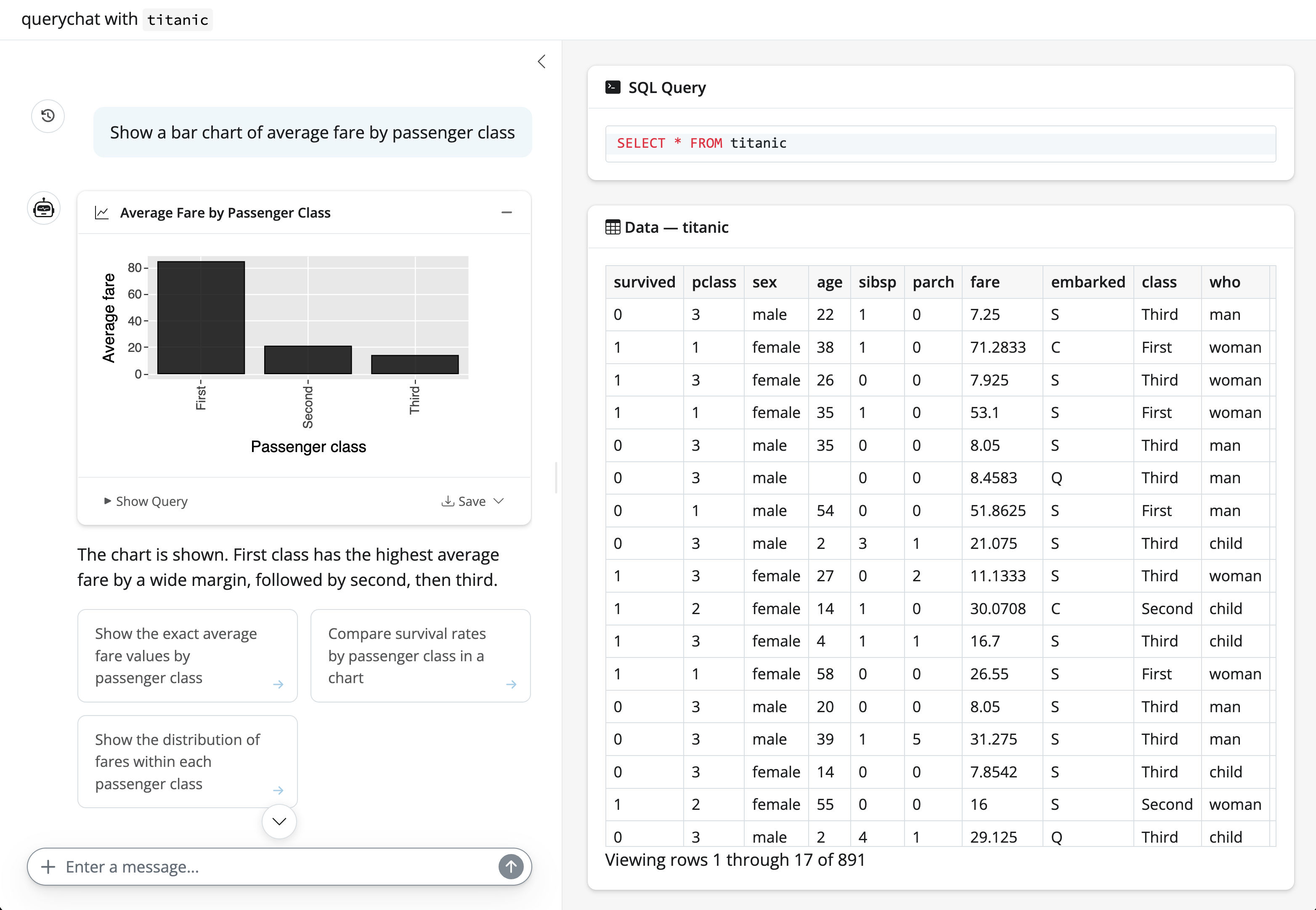
Useful for your own exploration, but for sharing with others, you’ll probably want to build a custom dashboard.

A basic custom dashboard

app.py
from shiny.express import render, ui
from querychat.express import QueryChat
from querychat.data import titanic

qc = QueryChat(titanic(), "titanic")
qc.sidebar()

with ui.card():
    @render.data_frame
    def data_table():
        return qc.df()
  • This is essentially what qc.app() does under the hood.
  • qc.sidebar() places the chat in a sidebar.
  • qc.df(): a reactive value containing the filtered dataset.
  • Shiny provides best UX, but you can also use Streamlit, Dash, or Gradio.

Exercise

  1. Open exercises/querychat-app.py and run it.
    • Can press run button in Positron or run shiny run exercises/querychat-app.py in terminal.
  2. Interact with the app enough to trigger all three tools. How do the tool call displays differ for each tool?
  3. Remove the "visualize" tool and add print(qc.system_prompt).
    • What do you notice in the system prompt?
    • When does the LLM gain context (if any) about the data?


Multiple tables

from querychat import QueryChat
from querychat.data import titanic, tips

qc = QueryChat(
  client="bedrock-anthropic",
  tools=("filter", "query", "visualize"),
)

qc.add_table(titanic(), "titanic")
qc.add_table(tips(), "tips")
  • Supports multiple tables, each with its own schema context.
  • Stuffing all that context into a single system prompt doesn’t scale well
  • Instead, querychat uses a tool-based approach: the LLM calls a tool to get schema context for a specific table.
  • BTW, a wide variety of data sources are supported: pandas, polars, ibis, sqlalchemy, etc.

Custom clients & tools

import chatlas as ctl
from querychat import QueryChat
from querychat.data import titanic

client = ctl.ChatBedrockAnthropic()
client.register_tool(ctl.tool_web_search())

qc = QueryChat(client=client)
qc.add_table(titanic(), "titanic")
  • Supply your own client to QueryChat to add custom tools, like a web search tool.

Exercise

  1. Open exercises/querychat-custom-app.py and run it.
  2. Follow the instructions at the top of the file to customize it.